Guild : Overview
Work with other hunters to make your guild the best it can be.
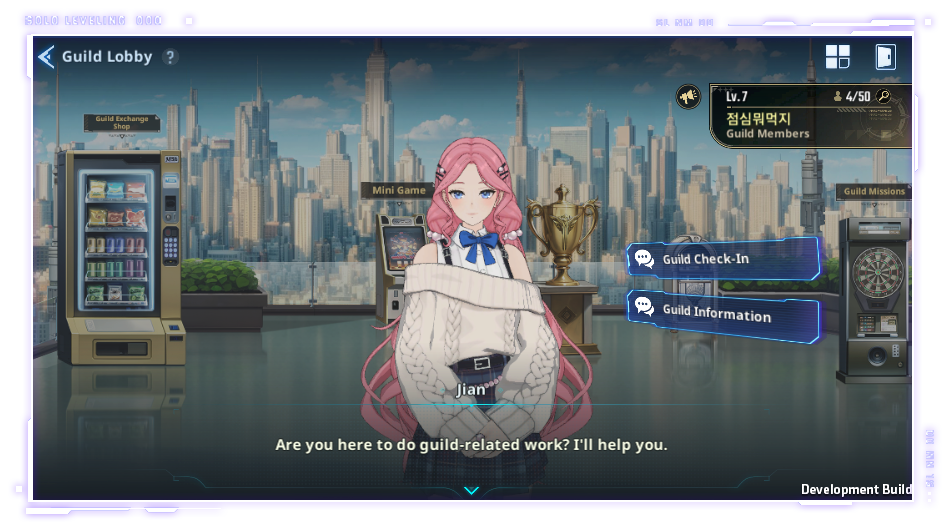
[How to Access the Guild Menu]
When you haven't created or joined a guild:
- [Lobby] > [Guild NPC] > Tap the [Guild] button at the top
- [Lobby] > [Menu] > Tap the [Guild] icon
*The Guild Menu becomes available when you reach level 20. You can only create your own guild when you reach level 40.
Once you have created or joined a guild:
- [Lobby] > [Menu] > [Guild Flag] icon on the left side of the menu bar
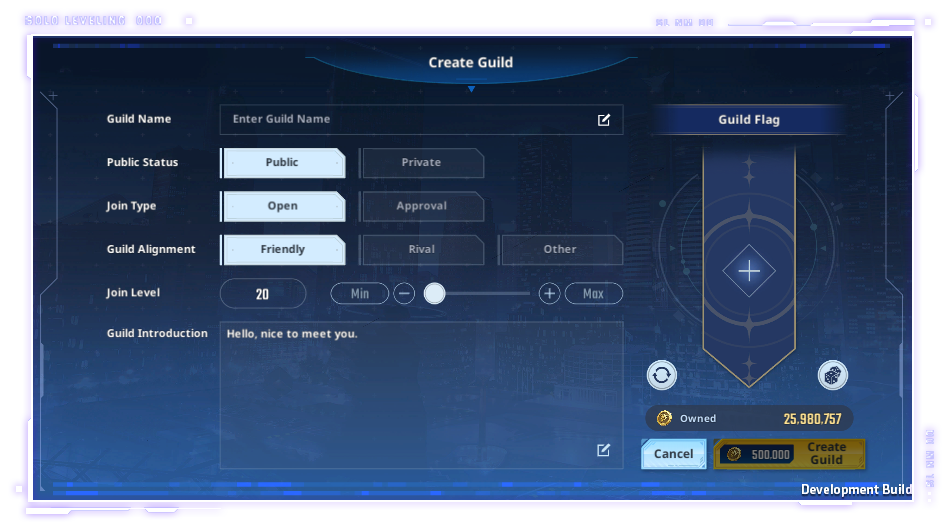
[Create a Guild]
1. Create: After accessing the [Guild] menu, tap the [Create] button on the left
*A certain amount of currency is consumed when creating a guild.
2. Guild Requirements Settings: You can choose your guild's join requirements when creating it.
- Guild Name
*Once a guild has been created, you cannot change the name.
*Duplicate guild names cannot be used.
*Guild names from the original Solo Leveling webtoon cannot be used for player-created guilds.
*If you have claimed a guild name, you can choose to use that reserved name or select a different one.
- Public Status: "Private" guilds won't be displayed on the public Guild List.
*After creating a guild, you can change this setting under [Guild Management].
- Join Type: "Open" guilds will allow hunters to join without approval.
*After creating a guild, you can change this setting under [Guild Management].
- Guild Type
*After creating a guild, you can change this setting under [Guild Management].
- Join Level: You can require new members to have achieved a certain level to be eligible to join your guild.
*You can set the required level to whatever you wish, regardless of the Guild Master's level.
*After creating a guild, you can change this setting under [Guild Management].
- Guild Introduction
*After creating a guild, you can change this setting under [Guild Management].
- Guild Flag
*You can change the guild flag before or after you create your guild.
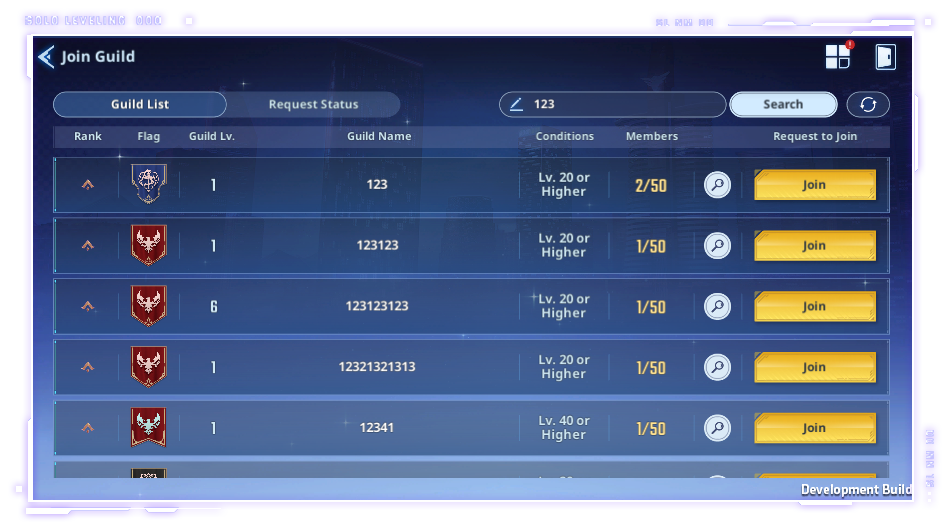
[Join Guild]
1. How to join a guild: after accessing the [Guild] menu, tap the [Join] button on the right to see the list of guilds.
2. Select your desired Guild.
- If you want to join a guild that is set to "private", you can search for it by entering the guild name.
- Use the filter function to narrow down the list.
*There's a maximum number of requests a guild can receive and guild member invitations it can send,
so if the number of requests reached the limit, you can change the settings so that players who send
a "Request to Join" will automatically be rejected.
3. After joining a guild, you can see your guild information by accessing the [Guild] menu again, which will now take you to your Guild Lobby, or check the basic info through your [Profile] menu.
*This guide was written based on the test version of the game, and the content may change in the future.