Mission Itinerary
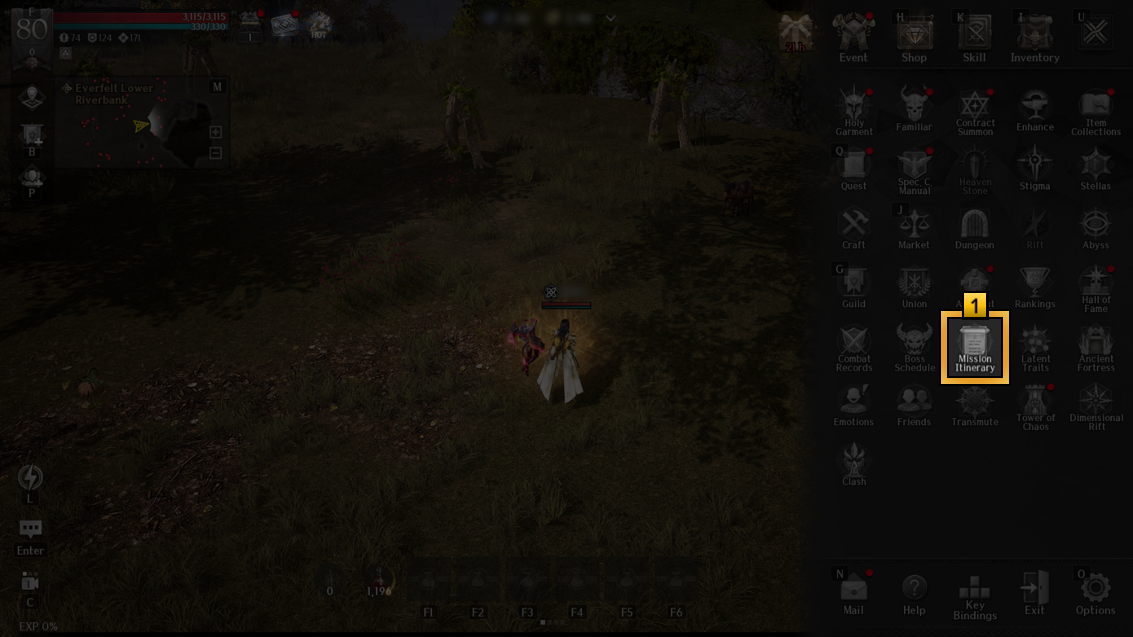
1 Access Mission Itinerary via [Menu (☰) > Mission Itinerary].
Mission Itinerary allows you to run content that you repeat daily automatically.
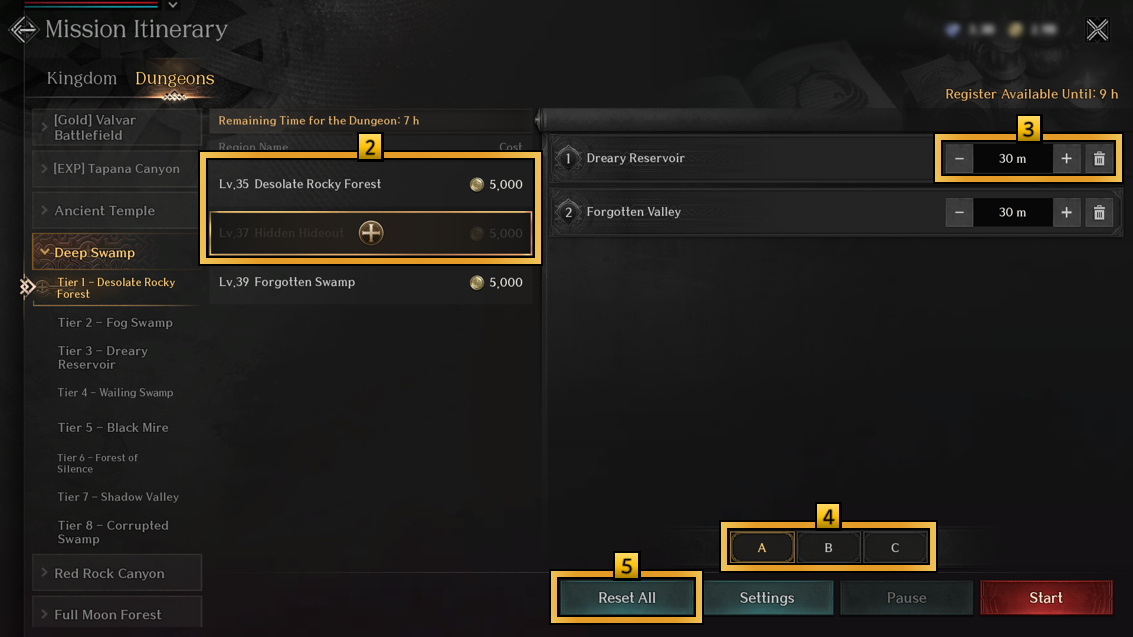
2 Select a Kingdom (Field) or Dungeon on the left and press the (+) button, and set the time for that content on the right panel.
3 You can adjust the duration using the plus (+) and minus (–) buttons.
Use the trash can icon to delete a task, or select a task to change the order.
4 Mission itinerary can be saved into a preset (A/B/C).
5 Press the Reset All button to clear all currently registered areas.
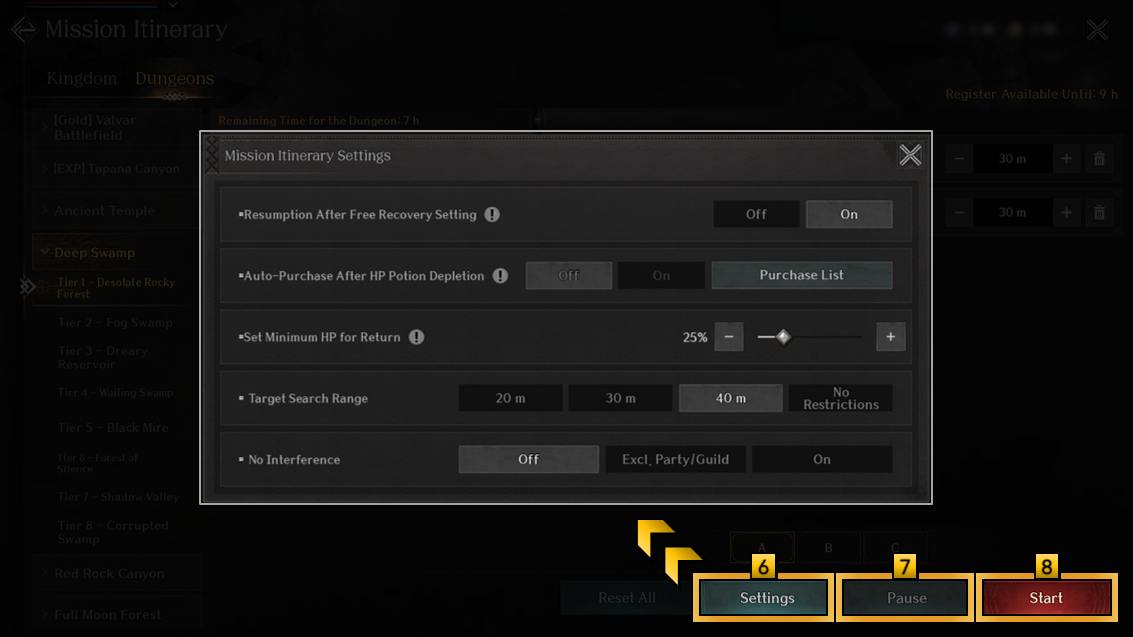
6 Press the Settings button at the bottom to customize various settings,
such as resumption after free recovery, potion auto-purchase, target search range, and interference settings.
7 You can pause a running itinerary by pressing the Pause button.
8 Press the Start button to begin running your configured mission itinerary.
After Starting the Mission Itinerary
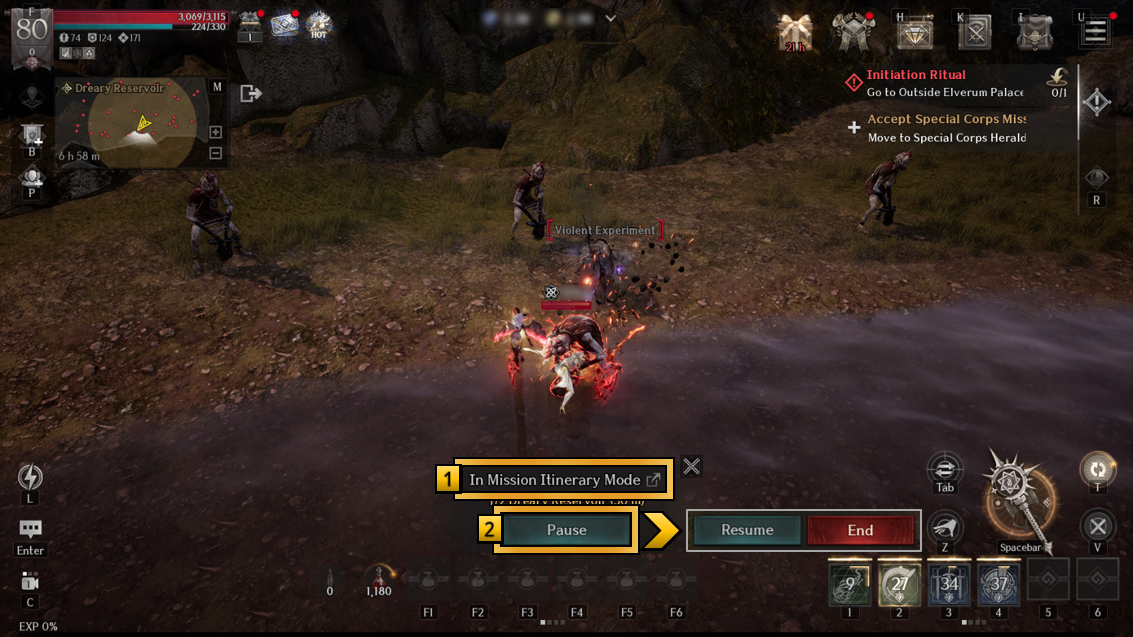
1 When you begin the Mission Itinerary, your character will automatically follow the schedule you previously set.
※ Please note that you cannot edit the itinerary while it is running.
2 When you press the Pause button, the itinerary will stop progressing.
Even if the set time expires, your character will continue to hunt in the same area, as long as it’s not in a time-limited dungeon.
- After pausing, you can press the Resume button to continue the itinerary.
- Pressing the End button will completely stop the itinerary, and your character will continue hunting in the current area.
- When the itinerary finishes, your character will continue hunting in the same area, as long as it’s not in a time-limited dungeon.