Search
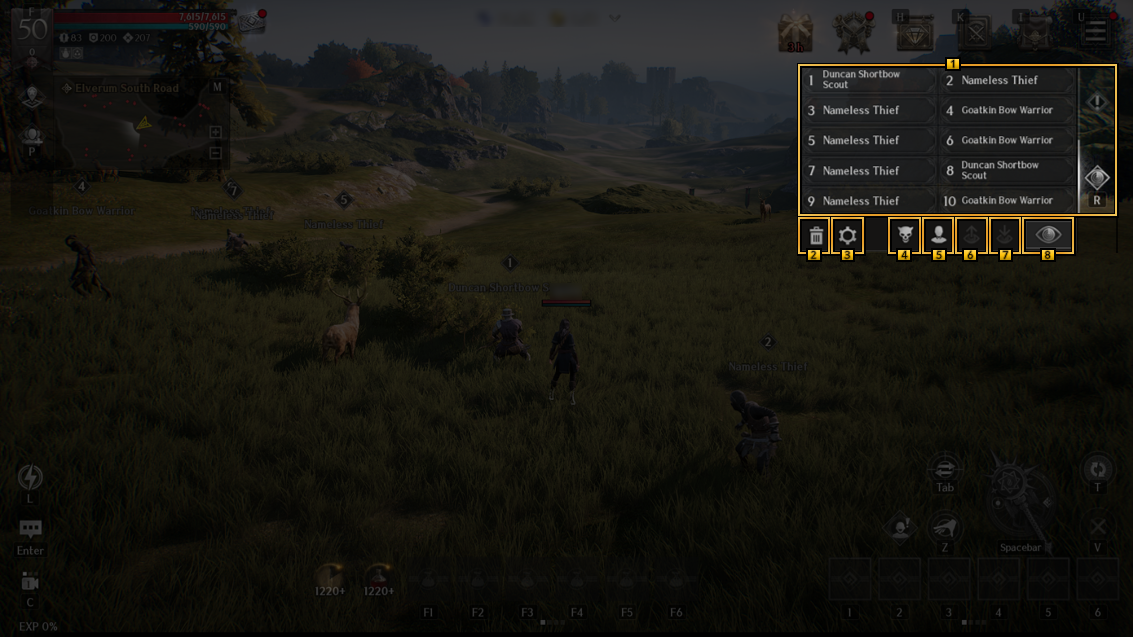
1 Tap (or click) the Search button at the top right of the screen,
or press the "R" key on the keyboard (PC version) to activate the Search menu by default.
The search results will be displayed on the screen, and Search Settings can be accessed via the bottom menu.
2 Delete all search results.
3 Enter the detailed Search Settings menu.
This menu can also be accessed via: [Options > Combat/Control > Search].
4 Toggle Monster Detection ON/OFF within the search results.
5 Toggle Player Detection ON/OFF within the search results.
6 Toggle ON/OFF the option to share your search results with party members.
7 Toggle ON/OFF the option to receive shared search results from party members.
8 Search the area again. If Auto-Search is turned OFF, update the search by pressing this button.
Search Settings
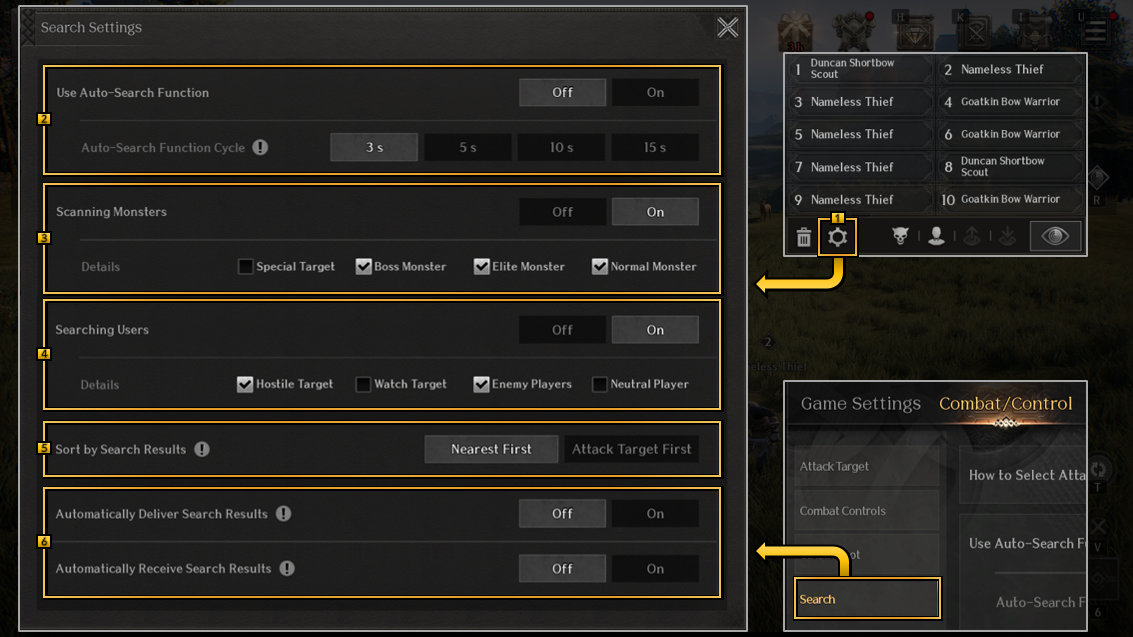
1 You can access Search Settings through the gear icon within the search menu or via [Options > Combat/Control > Search].
2 Toggle Auto-Search ON/OFF. When enabled, search data will refresh at regular intervals.
3 Toggle Monster Detection ON/OFF within the search results.
You can also customize search settings for Boss Monsters, Elite Monsters, and Normal Monsters.
4 Toggle Player Detection ON/OFF within the search results.
You can also customize search settings for Hostile Targets, Watch Target, Enemy Players, and Neutral Players.
5 Select the sorting order for the search results.
6 Toggle ON/OFF the option to share your search results with party members or receive search results shared by party members.
Attack Target
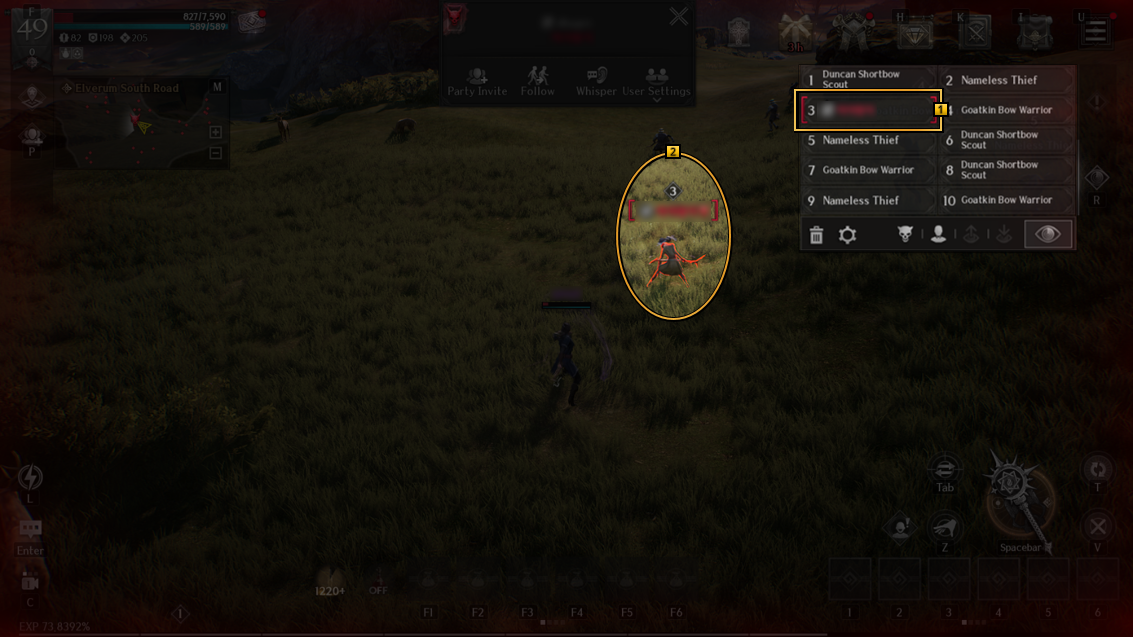
1 Tap (or click) the target you want to attack from the search results to initiate an attack.
If the “Confirm Attempted Attack on Player” option is enabled, you need to tap (or click) once more to confirm the attack.
2 Tap (or click) the target player on the field to attack.
If the “Confirm Attempted Attack on Player” option is enabled, you need to tap (or click) once more to confirm the attack.
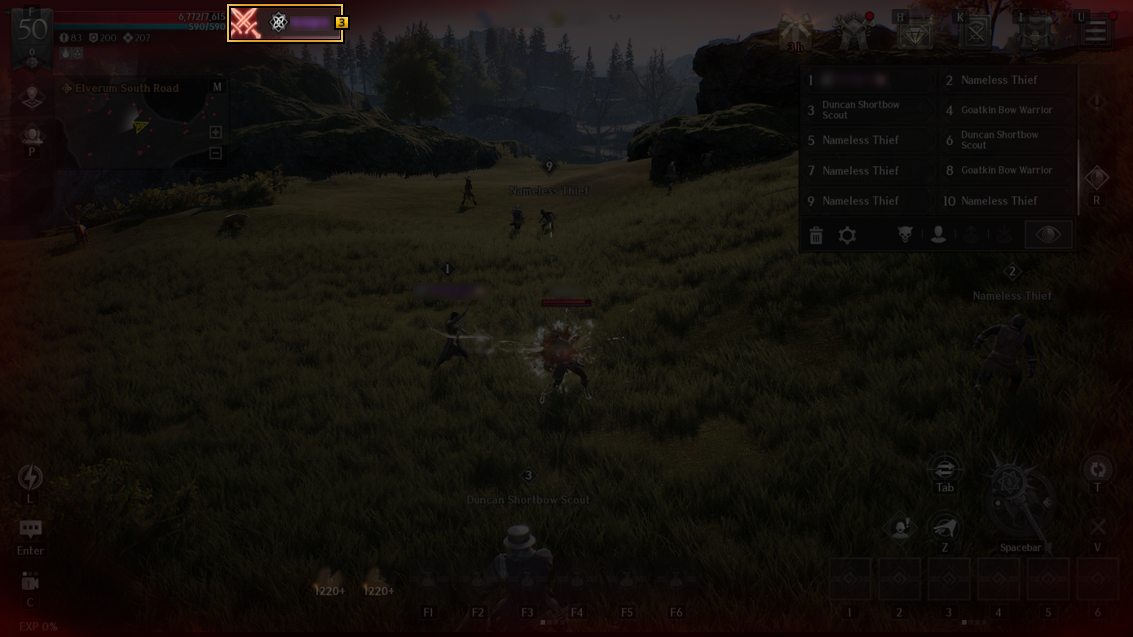
3 When attacked by another player, the screen will flash red with a counterattack indicator. Tap (or click) the counterattack indicator to attack.
If the “Confirm Attempted Attack on Player” option is enabled, you need to tap (or click) once more to confirm the attack.
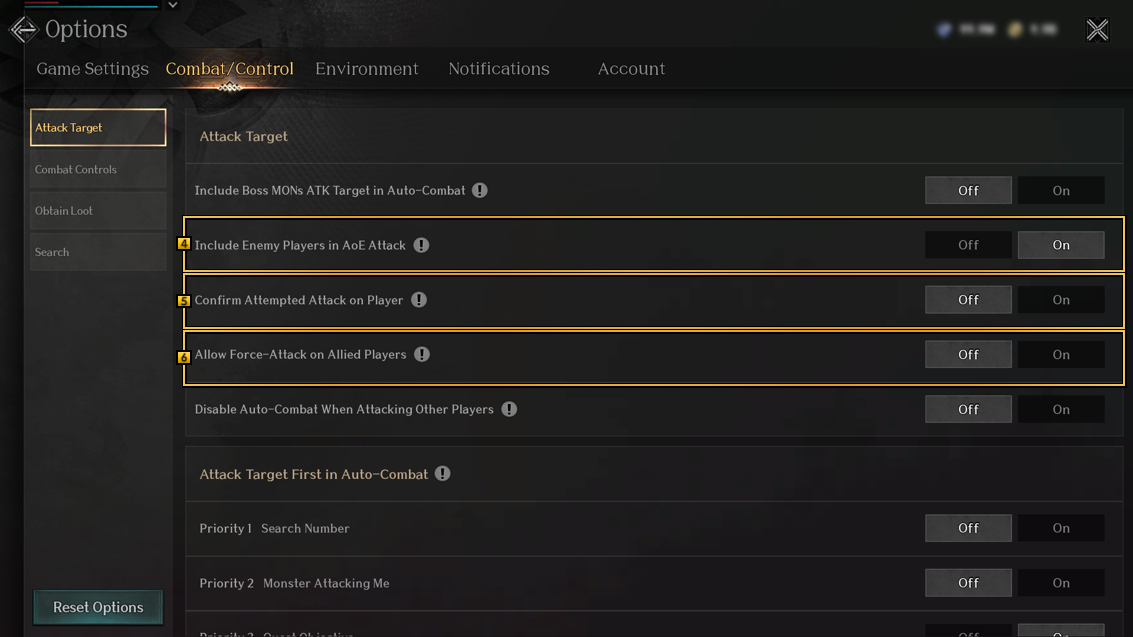
4 Choose whether to include enemy players around as targets when performing area attacks.
5 Choose whether to display the attack confirmation menu when attacking players.
If set to Off, attacking will begin immediately when the target is selected.
If set to On, you must tap (or click) the target once more to confirm the attack.
6 If this option is turned off, you will be prevented from Force-Attacking allied players