◈ Main Screen
Let's learn about the main screen of Blade & Soul: Revolution!
It has all the convenient functions.
──────────────────────────────
[Table of Contents]
1. Title Screen Layout
2. Main Screen Layout
──────────────────────────────
1. Title Screen Layout
1) What is a title screen?
① It's the first screen you see when you first log in.
② You can select a server or find a character from the title screen.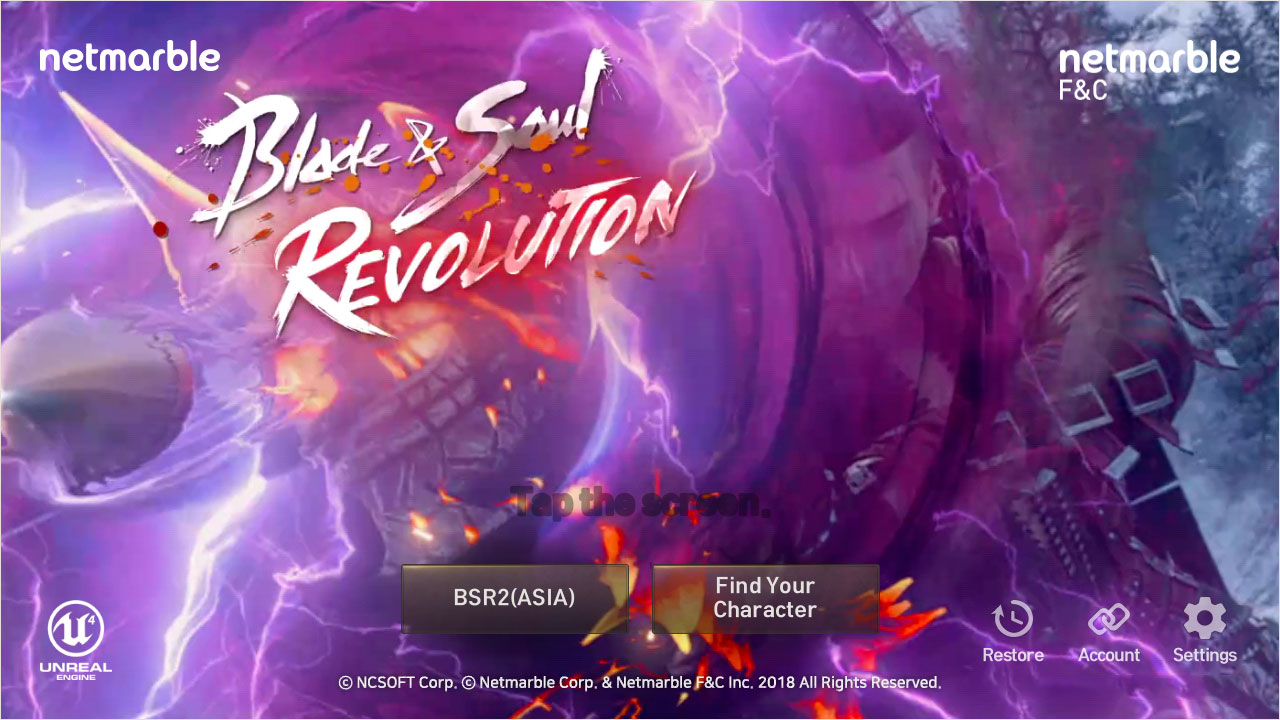
2) How to select server
① If you select the server in the title screen, you'll see the server selection screen.
② You can check the status of the server that your character is in.
③ Select [See Recommendation] at the top of the screen to see the recommended and new servers.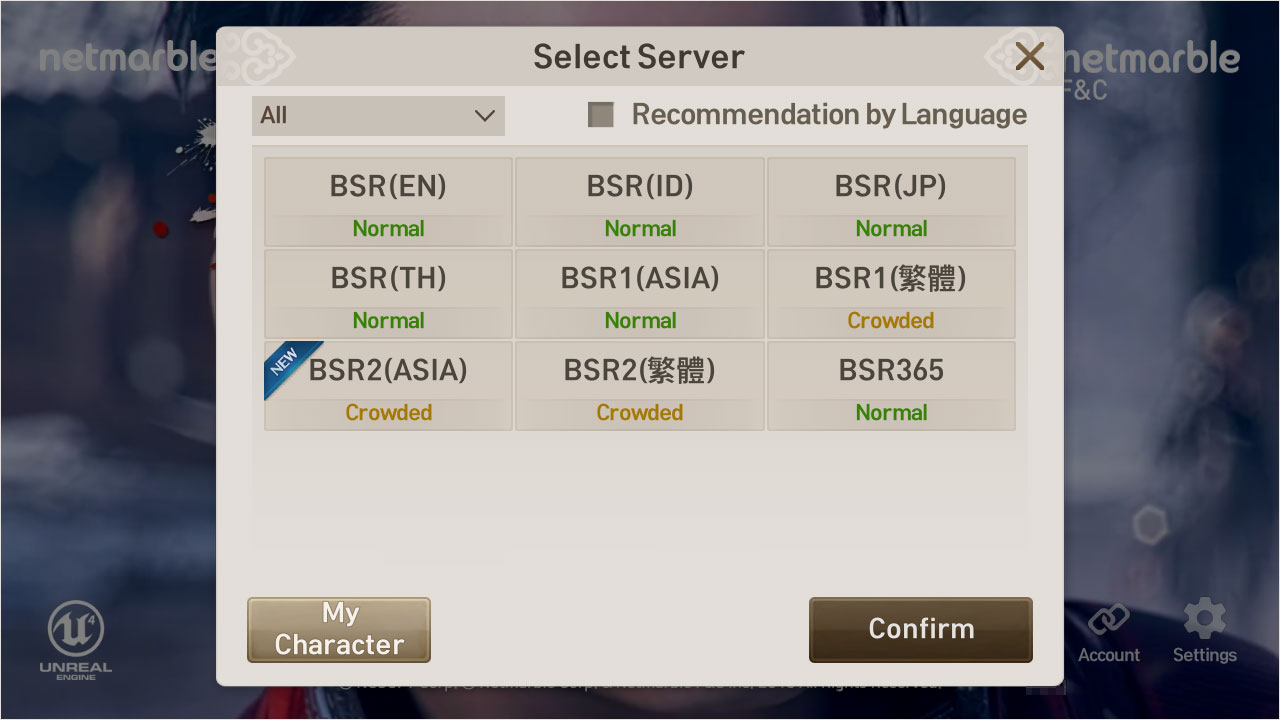
3) Settings
① Tap the settings button on the bottom right side of the screen to proceed.
② You can change gameplay related settings, graphics, or sounds.
③ You can also change the settings in the game.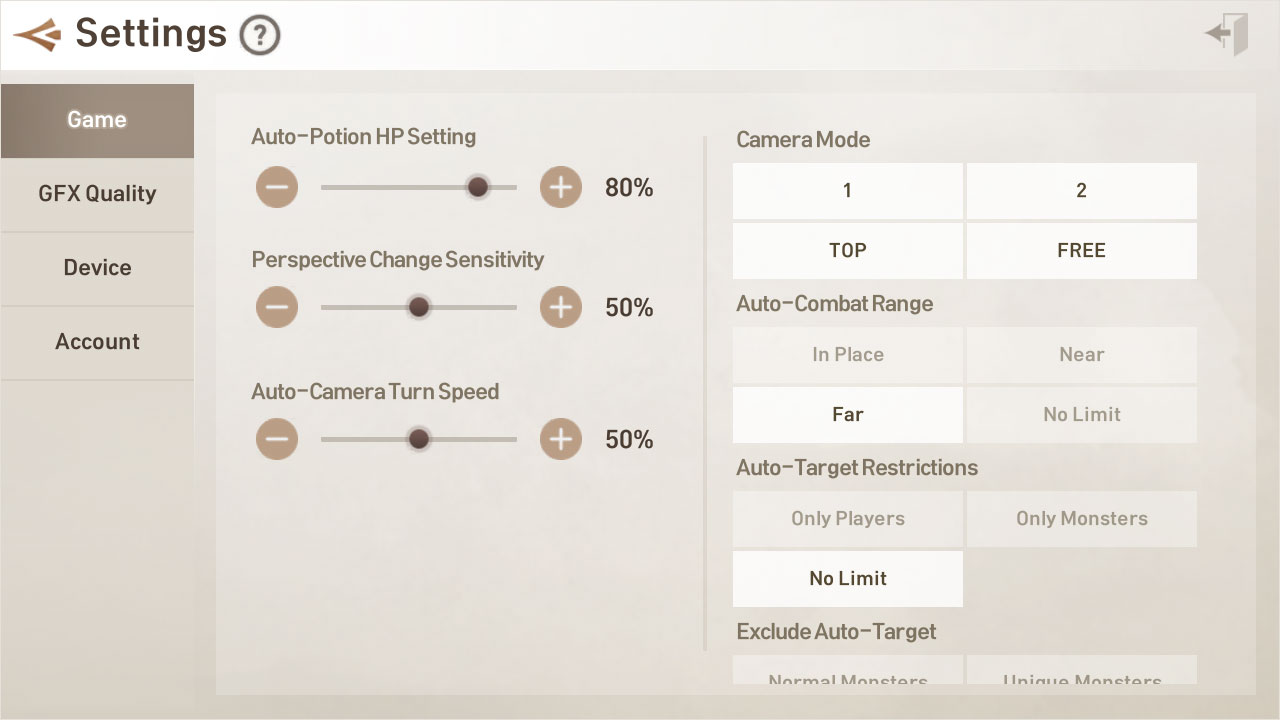
4) Account
- You can switch accounts, but unlinked accounts will be deleted.
Please link your account first before switching accounts.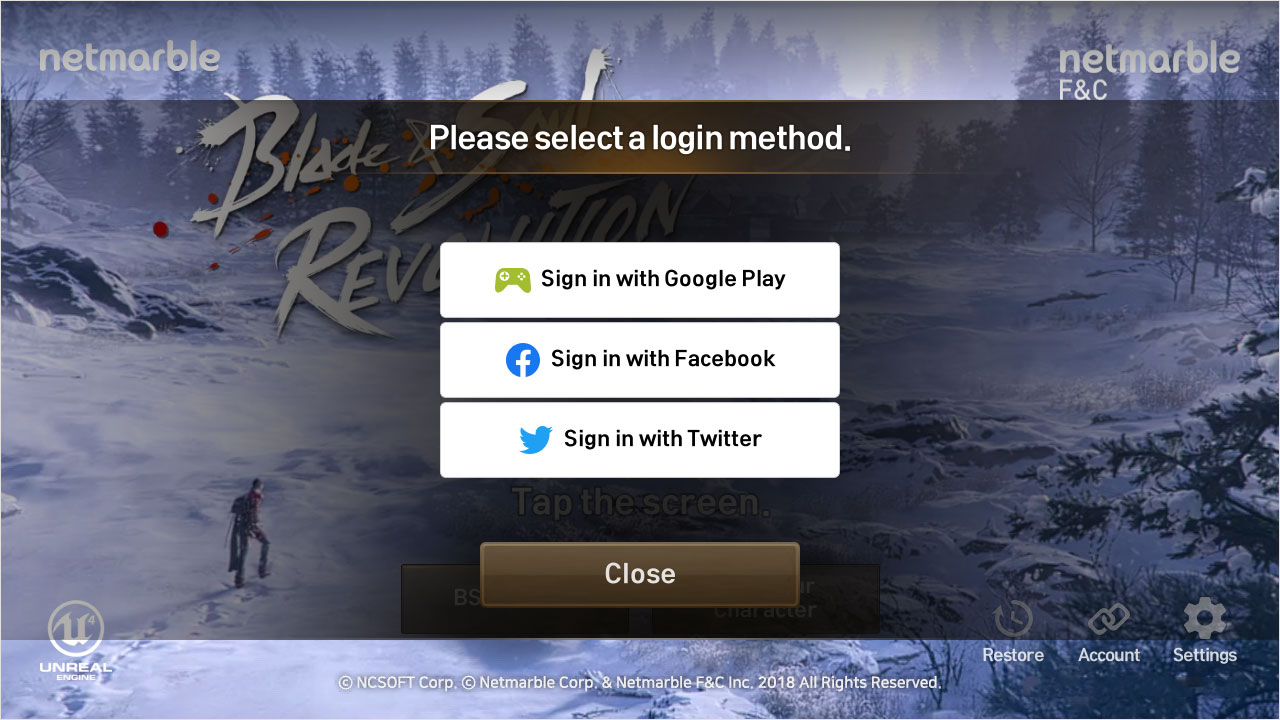
5) Restore
① If you can’t log in after successfully installing and updating,
you can use recovered files to log in.
② But, if you recover patch files, it'll re-download the files.
Data charges may apply. Downloading over Wi-Fi or other network connection is recommended.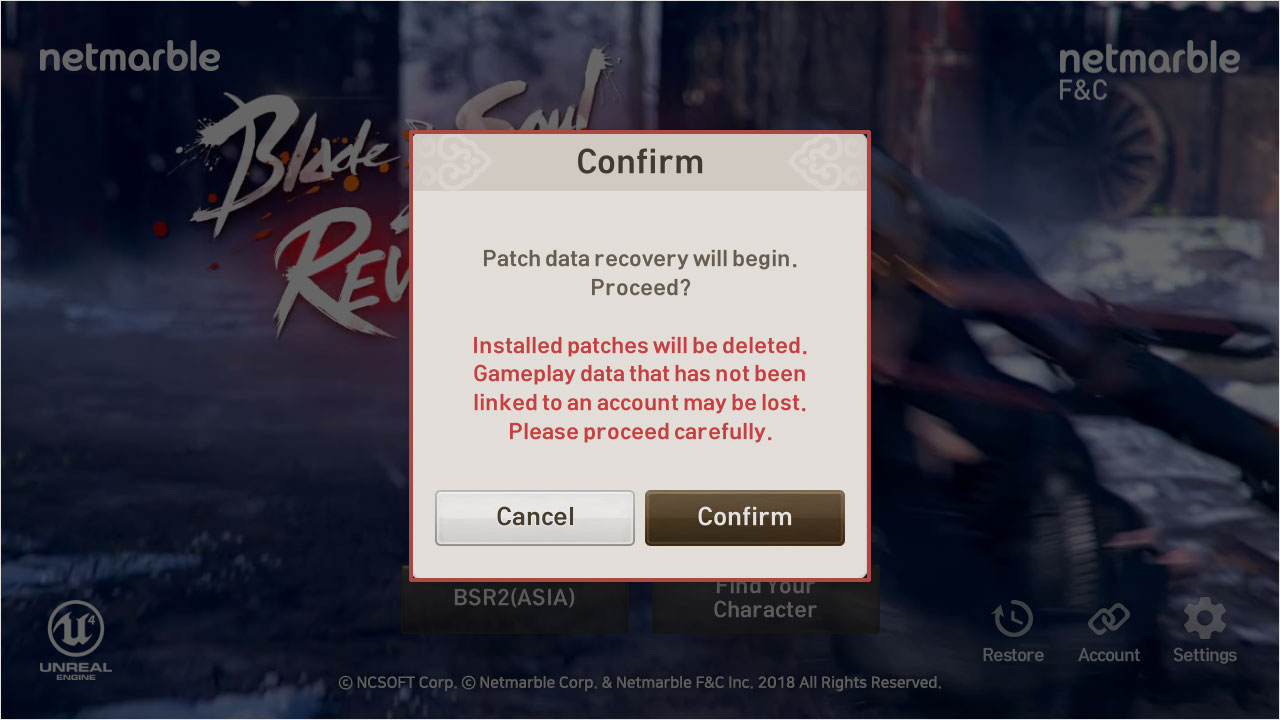
6) Select a character to start the game. 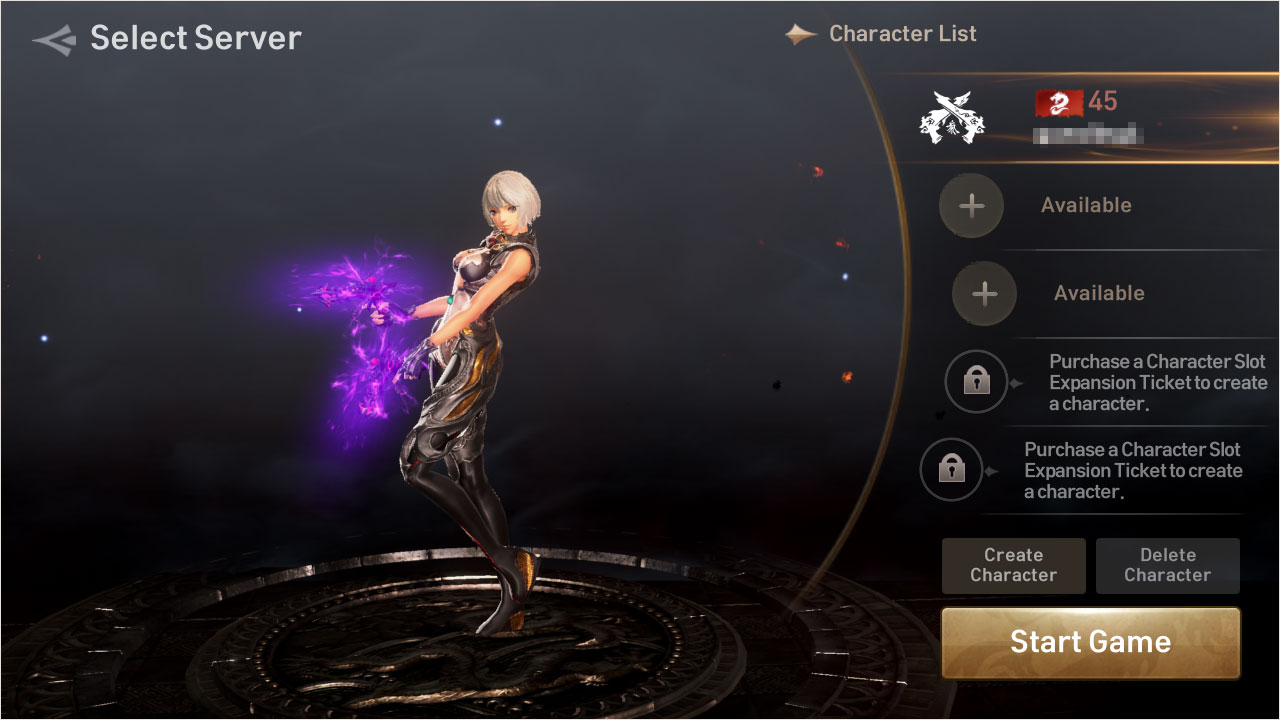 ♠ If you don't have a character, you can start after creating one.
2. Main Screen Layout
1) Character Info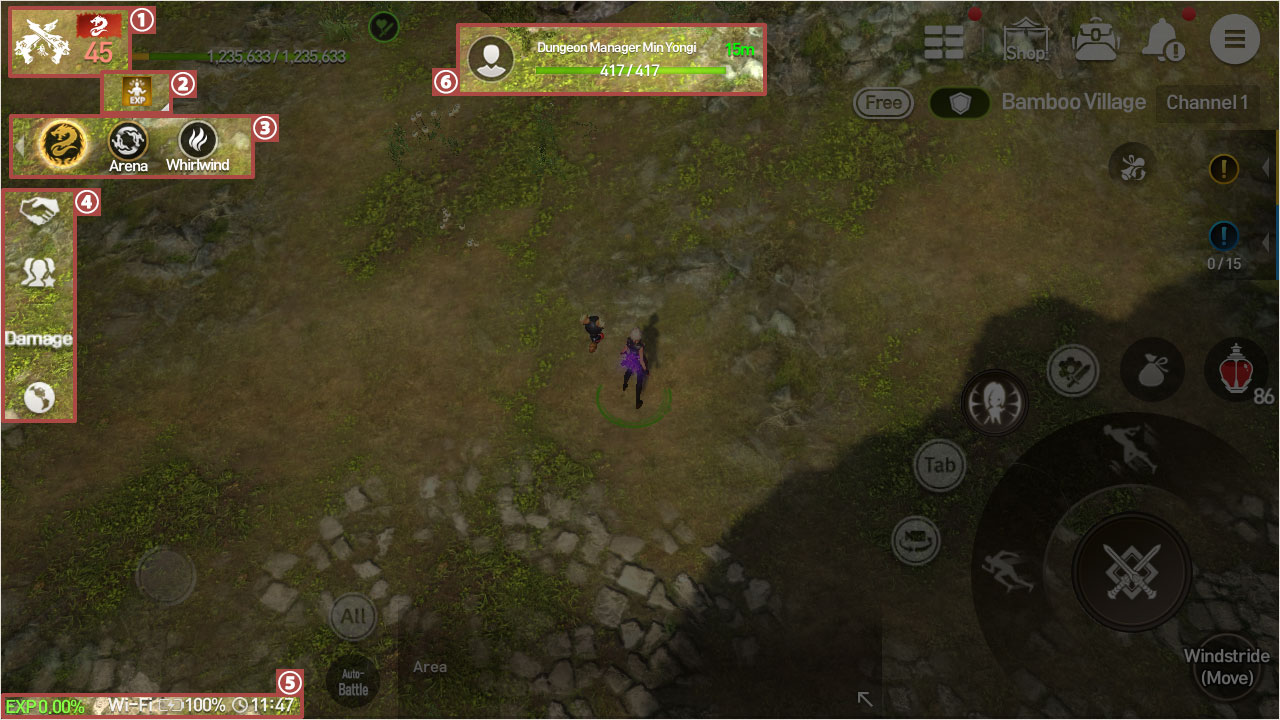
① Check the character's class and name.
Select the character to view details.
② Displays the effects of currently active limited talismans and buffs.
Select to see the limited talisman/buff type and remaining time.
[Display Buff List]
- Long-lasting Buffs: Total Battleheart/Clan Furniture/Faction Ranking/PK Ranking/New Server Growth/Special Blessing of Growth/
Returning Player/New Player/Pioneer of Strength/Hongmoon Luminary Exclusive Buff, etc.
- Talisman Buffs: XP, Silver, Item Acquisition Gain, Faction Points Gain Increase Buff, etc.
③ The alerts show you specific content such as Dimensional Rift, Evil Beast Conquest, or Arena.
Tap the content button to go to the location of the content or see details.
④ Party: View info about parties such as Create Party/Find/See Status.
Friends: See who is logged in.
Damage: You can see your damage and the damage of your party members if you're in a party.
Mini-Map: Shows the character's location and the map of the current area. It's very convenient when moving around.
⑤ You can see current XP / Network status / battery status / current time.
⑥ You can see the selected target's info.
You can see remaining HP for monsters.
For normal characters, you can see their name, faction,
send friend requests, or invite to party.
⑦ View the Weapons Special Option information.
Only the Weapons Primary Special Options are displayed.
2) Scheduler
① The Scheduler pop-up automatically appears on the main screen when you first log in.
② This system allows you to view a variety of Daily and Weekly content at a glance,
which can be accessed through the Quick Menu button.
♠ Select the shortcut in the bottom right to move to that content tab.
③ While Recommended content is provided by default, based on your play pattern,
you can customize up to 5 additional settings separately.
♠ Items 1-5 in the Recommended tab are fixed and cannot be changed.
♠ Items 1-5 in the Favorites tab can be modified and are saved in the order you select them.
3) Basic Menu Layout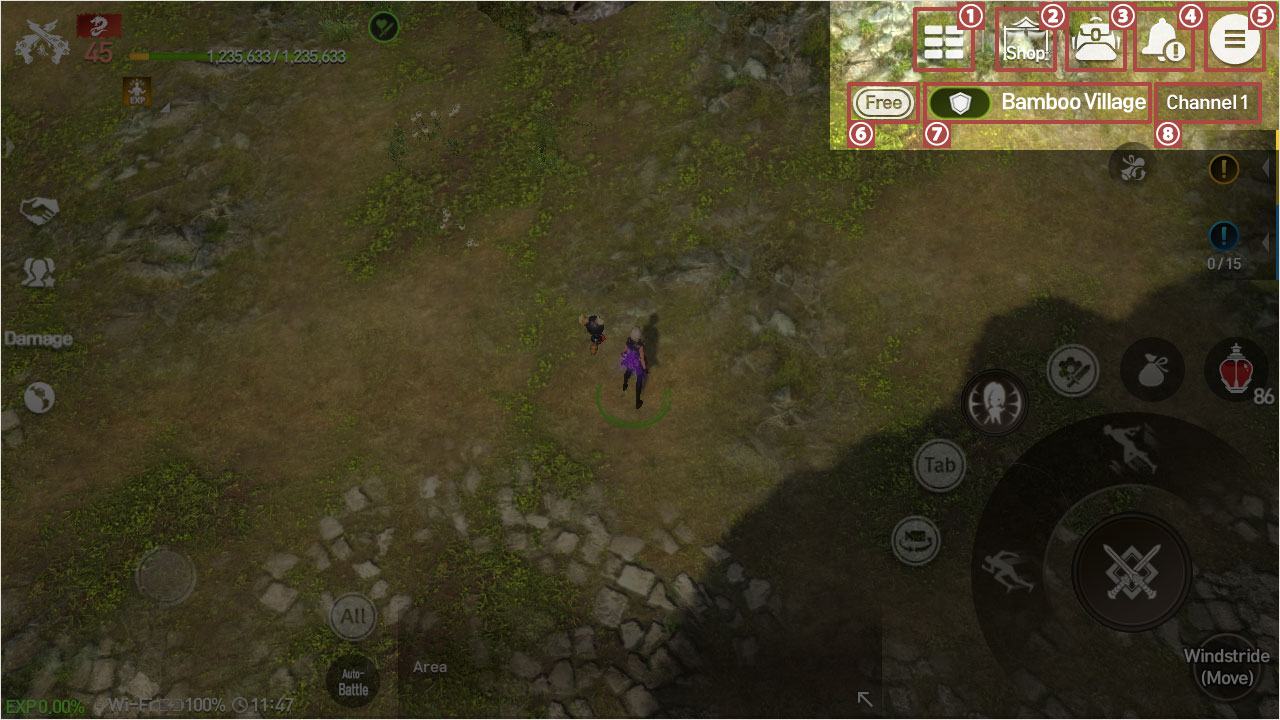
① With Quick Menu, you can see Occupation Status, Training Ground, Contribution, Fishing Log,
Faction Status, Battle Status, Hongmoon Adventure, Level Up Reward, Check-In / Rest Reward and Events.
- You can select and change 10 categories to show in the Quick Menu.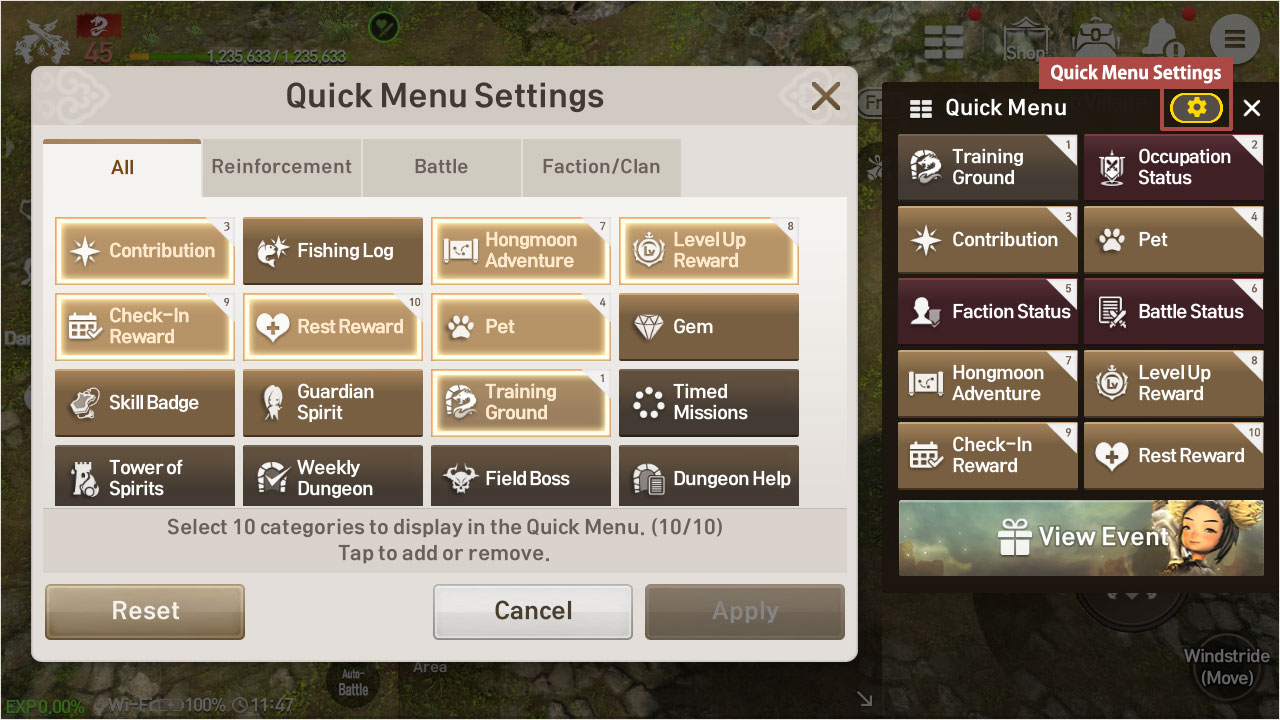
② Shows the shop.
You can tap the button to open the shop anywhere you are,
and you can purchase various items.
③ The inventory shows all the items your character owns.
The inventory is divided into All/Equipment/Soul Shield/Miscellaneous tabs.
④ The alerts show you all the content you can currently do.
You can easily see rewards you haven't received yet.
♠ Guide notifications can be set to turn ON/OFF.
⑤ You can see all the content
you can enjoy in Blade & Soul: Revolution.
| Top Menus | World Map | Settings | Switch | Mailbox | UI | Power-Saving Mode |
| Character | My Info | Wardrobe | Pet | Friends | Fishing | |
| Skills | Skills | Passives | Utility Skills | Auto-Skill | Hongmoon Arts | |
| Item | Skill Badge | Gem | Guardian Spirit | Process Soulstone | Codex | Fishing Codex |
| Adventure | Dungeon | Dungeon Help | Weekly Dungeon | Training Ground | Tower of Spirits | Field Boss |
| Battlefield | Arena | Whirlwind Valley | Occupation Battle |
Hongmoon Training Area | ||
| Faction | Faction Info | Faction Status | Faction Shop | |||
| Clan | Clan Info | Alliance/Hostile | Clan Dungeon | Clan Challenge | Clan Shop | |
| Challenge | Quests | Step Quests | Timed Missions | Achievements Reinforcement |
Contribution | Fishing Log |
| Marketplace | ||||||
| Rankings |
⑥ You can change the camera's perspective.
The smaller the number of the camera, the closer it is to the character.
♠ Screen zoom in/out:
With two fingers, touch an empty space on the screen
and bring your fingers together or push them apart to zoom in or out.
⑦ You can see the area you're currently in.
Tap to see the World Map and use the move button to move to other areas.
⑧ You can see the channel you're currently in.
Each area has different channels and even if you're in the same area,
characters cannot meet if the channel is different.
But, single channels for 1-player quests can only have 1 player.
Single channels with the same name are considered to be separate channels so the characters can't meet.
4) Menu for Attack/Move/Communication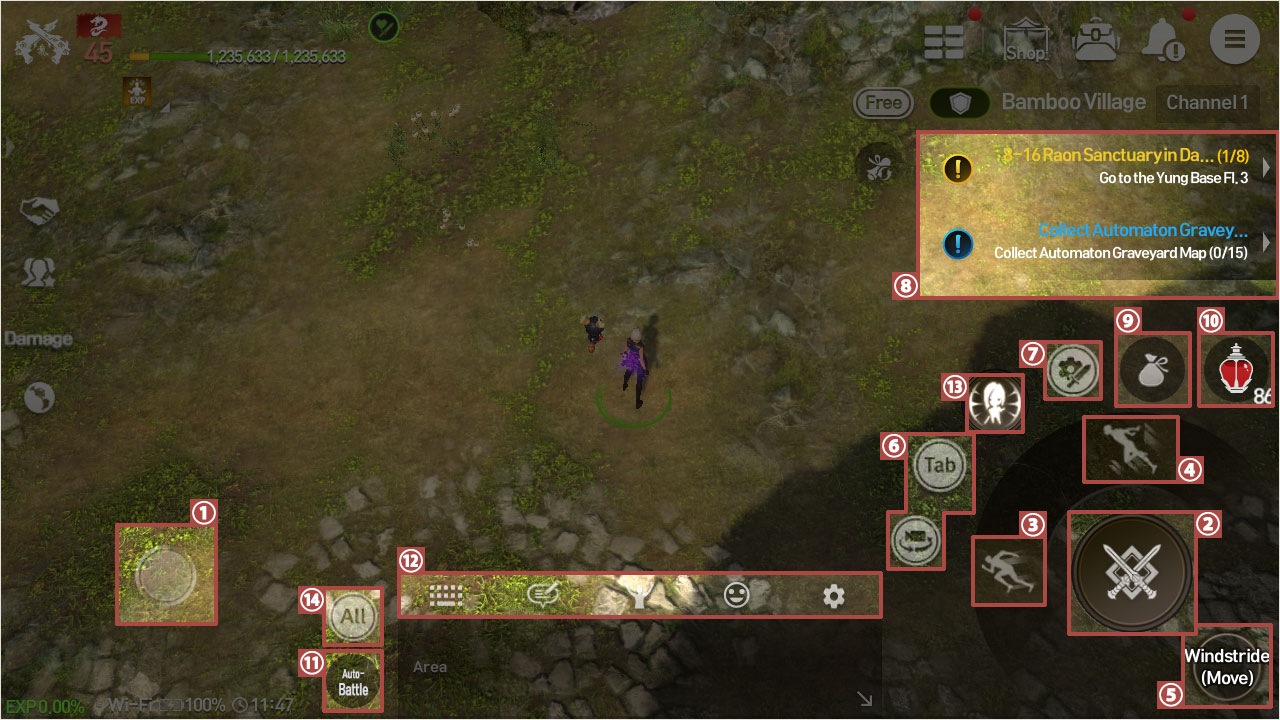
① Use to move around your character.
If you tap and move the finger in the direction you want to go
the character will follow.
② Select Battle to use skills.
In battle mode, you can attack monsters or characters from hostile factions.
You cannot sprint or jump in battle mode; if you don't attack or receive attacks for a certain amount of time, you'll no longer be in battle mode.
When you are in non-Combat Stance, you can view the Focus information needed for Ultimate Stance.
③ The icon turns white when you select Sprint.
If you move your character in Sprint mode, you can Windwalk to places.
To get out of Sprint mode, select the button one more time.
④ The character jumps really high when you select Jump.
Use Jump while sprinting to jump much farther and higher.
Use Sprint and Jump to Glide or Air Dash.
⑤ Windstride to move to a far location quickly.
You can Windstride to a Windstride Point,
and if you saved a personal Windstride point, you can move to the saved location.
⑥ Use the button to change the selected target.
The info of the target is displayed at the top of the screen.
Tap the camera perspective button to change the view in the direction of where the character is looking,
and you can hide the button in the settings menu.
⑦ Change Quick Battle Settings.
You can easily change Equipment/Soul Shields/Pets/Skill Badges/Auto-Skill/Variants by changing the slots.
You can switch targets or change targeting limits when using basic attacks.
♠ In Safeguard Status, you can't change the Quick Battle Settings such as Equipment/Soul Shield/Pet/Skill Badge/Auto-Skill/Variants, etc.
⑧ When you select the quest,
you move automatically to the quest area or defeat monsters.
Yellow is for main quests and blue is for side quests.
⑨ The mini bag contains consumables that you own except potions.
With the mini bag, you can use items without having to open the inventory,
and some items can be set to use automatically at certain times.
⑩ The potion bag shows HP potions you own in your inventory.
Tap the button to use a potion immediately,
or they can be set to use automatically when HP drops below a certain level.
⑪ You can activate auto-battle.
Auto-battle mode uses attack skills;
manual battle mode doesn't use skills except basic attacks.
⑫ You can chat in All/Area/Clan/1:1 and other chat rooms
and can use emotes to express character's emotions.
⑬ The Guardian Spirit uses its leader skills.
Only the leader Guardian Spirit activates its leader skills. (Details will be added later)
You can change the appearance of damage by applying a damage font.
⑭ Set to attack Players/Normal Monsters/Unique Monsters/All targets.
*This guide is accurate as of the test version of the game and may be subject to change.